
System Database / Database Source Management
Source Leads
Browse, search, filter, and manage individual leads stored within a database source.
Overview#
The Source Leads view displays every lead stored within a database source. From here you can search and filter leads, inspect individual records, update statuses, move leads between sources, and export data — all from a single interface.
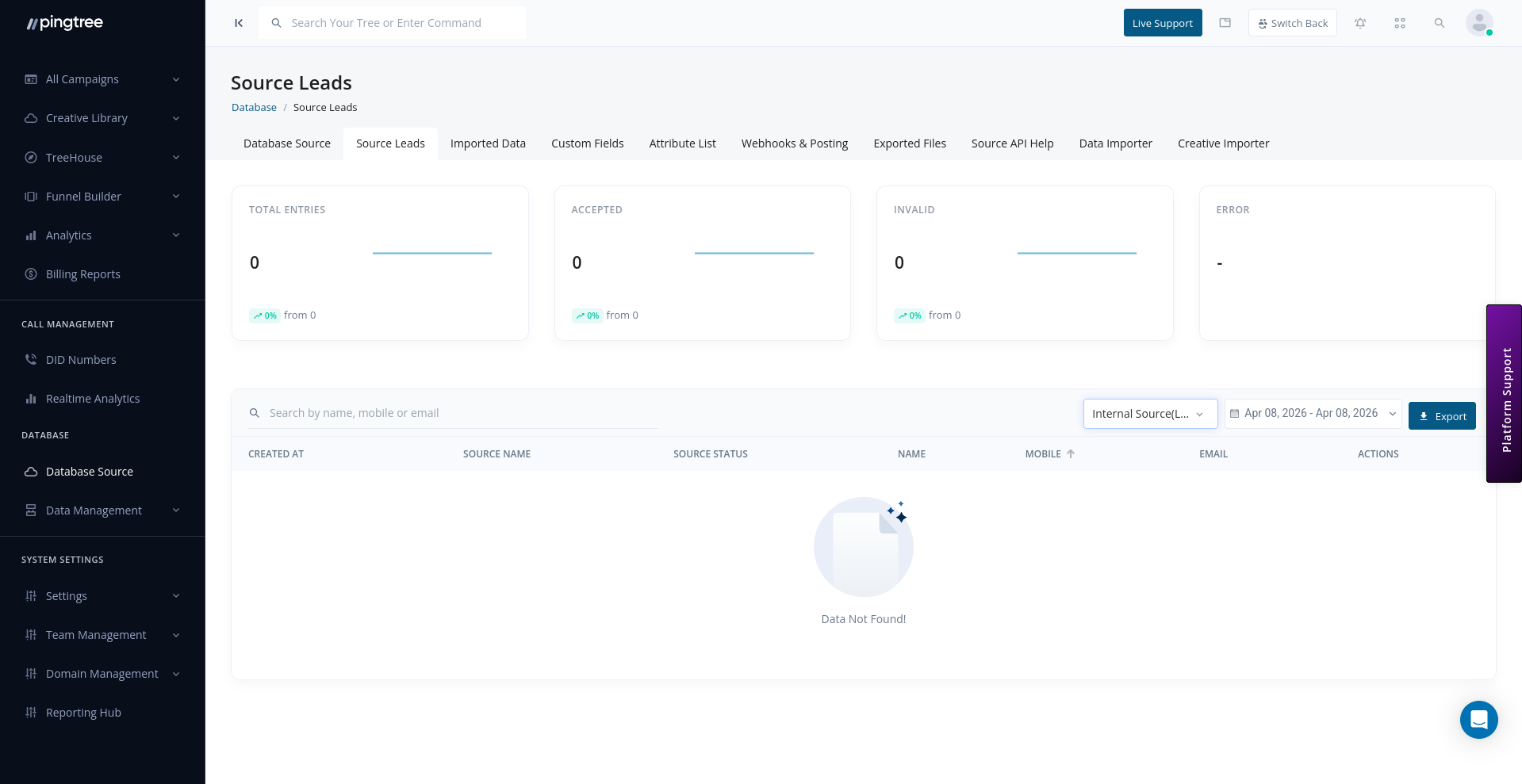
Browsing Leads#
When you open a database source and navigate to the Leads tab, you will see a paginated table of all leads in that source.
| Column | Description |
|---|---|
| Name | The lead's full name. |
| The lead's email address. | |
| Phone | The lead's phone number. |
| Status | Current status of the lead (e.g., Active, Sold, Rejected, Duplicate). |
| Source | The database source this lead belongs to. |
| Created At | Timestamp of when the lead was ingested. |
| Actions | Quick-access buttons to view, edit, or move the lead. |
Searching and Filtering Leads#
Use the search and filter controls above the leads table to narrow down results:
| Filter | Description |
|---|---|
| Name | Search by the lead's first or last name. |
| Filter by full or partial email address. | |
| Phone | Filter by phone number. |
| Status | Filter by lead status (Active, Sold, Duplicate, Rejected, etc.). |
| Date Range | Show only leads created within a specific date window. |
Tip: Combine the email filter with a date range to quickly identify if a specific contact submitted multiple times within a campaign window.
Advanced Search with Elasticsearch#
For large databases containing thousands or millions of leads, the Advanced Search mode uses Elasticsearch to deliver fast, full-text search across all lead fields.
To use Advanced Search:
- Click the Advanced Search toggle at the top of the leads table.
- Enter your query terms — these can span any field in the lead record.
- Use field-specific filters alongside the free-text query for precision.
- Results return in order of relevance.
Tip: Advanced Search supports fuzzy matching, so searching for "john@gmal.com" will still surface leads with "john@gmail.com" nearby.
Viewing Lead Details#
Click any lead row to open its full detail view. The detail panel shows:
- All captured lead fields and their values.
- Metadata: submission date, source, IP address, and user agent.
- Distribution History: which buyers or endpoints this lead was posted to, and the outcome of each post.
- Status History: a log of every status change with timestamps and the user or system that triggered the change.
Changing Lead Status#
To update a lead's status:
- Open the lead detail view.
- Click the Status dropdown.
- Select the new status.
- Confirm the change.
Available statuses:
| Status | Description |
|---|---|
| Active | The lead is available for distribution or outreach. |
| Sold | The lead has been successfully posted to a buyer. |
| Duplicate | The lead was flagged as a duplicate during ingestion. |
| Rejected | The lead failed validation or required field checks. |
| Suppressed | The lead has been added to a suppression list and will not be posted. |
Moving Leads Between Sources#
You can move one or more leads from their current database source to a different source:
- Select the leads you want to move using the row checkboxes.
- Click the Move action in the bulk actions toolbar.
- Choose the destination database source from the dropdown.
- Confirm the move.
Tip: Moving leads is non-destructive — the lead record is transferred intact, including all its field data and history.
Exporting Leads as CSV#
To export leads from a database source:
- Apply any filters you want to limit the export scope.
- Click the Export button.
- The system queues an async export job.
- Once complete, the CSV file will appear in the Exported Files section for download.
See Exported Files for more details on managing your export history.
Lead Distribution Details#
For any lead that has been posted out, the Distribution tab within the lead detail view shows:
- The endpoint or buyer the lead was sent to.
- The request payload that was submitted.
- The response received from the buyer system.
- The outcome: Accepted, Rejected, or Error.
- Timestamps for each post attempt.
This makes it easy to troubleshoot rejected posts or verify successful distributions.