
System Database / Database Source Management
Data Importer
Upload CSV files to bulk-import leads into a database source, with column mapping, fuzzy match review, and import progress tracking.
Overview#
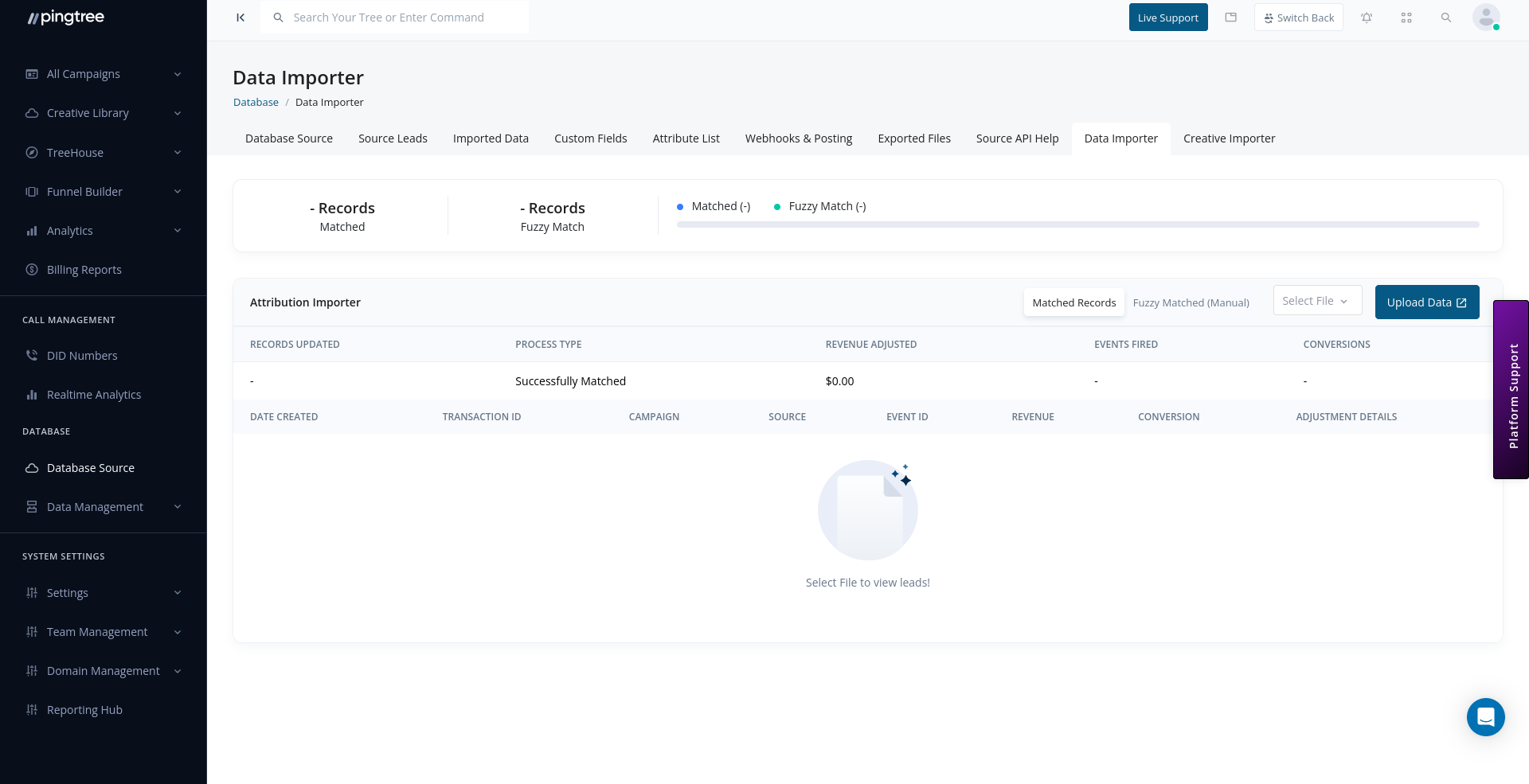
The Data Importer allows you to upload CSV files and bulk-import leads into a database source. It supports column mapping, duplicate detection, fuzzy matching for near-duplicates, and step-by-step progress tracking — making it straightforward to bring large datasets into Pingtree without manual data entry.
Video Walkthrough: A step-by-step video guide for this feature is coming soon.
Before You Start#
Make sure your CSV file is ready before beginning the import:
- File format:
.csv(comma-separated values). - Encoding: UTF-8.
- The first row must be a header row with column names.
- Phone numbers should include only digits (no dashes, parentheses, or spaces).
- Date fields should use a consistent format throughout the file (e.g.,
MM/DD/YYYY).
Tip: Start with a small test file of 10–20 rows before importing a full dataset. This lets you validate your column mapping and catch data issues early.
Step 1: Upload Your CSV File#
- Navigate to the Data Importer tab within your database source.
- Click Upload CSV File.
- Select your file from your local machine (or drag and drop it into the upload zone).
- The system reads the file and extracts the column headers for mapping.
Once uploaded, the file moves to the Column Mapping step automatically.
Step 2: Map CSV Columns to Pingtree Fields#
In this step, you align each column in your CSV file with the corresponding Pingtree field.
The mapping interface shows:
| Column | Description |
|---|---|
| CSV Column | The header name from your uploaded file. |
| Sample Values | A preview of the first few values from that column to help confirm you are mapping the right field. |
| Pingtree Field | A dropdown to select which Pingtree system or custom field this column maps to. |
Rules for mapping:
- Every column must be mapped to a Pingtree field, or explicitly marked as Ignore to skip it.
- Required fields (as configured on the source) must be mapped before the import can proceed.
- Custom fields you have defined on the source will appear in the Pingtree Field dropdown alongside system fields.
Tip: If your CSV uses field names that match Pingtree's field keys exactly (e.g.,
phone,first_name), the system will auto-suggest the correct mapping. Always review auto-suggestions before proceeding.
Step 3: Review Mapping and Start Import#
Before the import begins, review a summary of your mapping:
| Summary Item | Description |
|---|---|
| Total Rows | Number of data rows detected in the CSV (excluding the header). |
| Mapped Fields | List of all CSV columns and their assigned Pingtree fields. |
| Ignored Columns | Columns that will be skipped. |
| Required Fields | Confirmation that all required fields have been mapped. |
Once satisfied:
- Click Start Import.
- The system queues the import job and begins processing rows.
How Leads Are Processed#
For each row in the CSV, the importer:
- Validates the row against required fields and data type rules.
- Checks for exact duplicates using the source's configured duplicate field (e.g., email or phone).
- Checks for fuzzy matches — near-duplicate leads that are similar but not identical to existing records.
- Creates or updates the lead record based on the outcome:
| Outcome | Description |
|---|---|
| New Lead Created | No match found — the row is added as a new lead. |
| Exact Duplicate | A lead with the same duplicate field value already exists — the row is skipped. |
| Fuzzy Match | A similar lead was found — held for manual review before being merged or rejected. |
| Validation Failed | The row is missing required fields or has invalid data — logged as a failed row. |
Fuzzy Matching During Import#
Fuzzy matching identifies leads that are similar to existing records but not exact matches. The system compares key identifiers (name, email, phone) using similarity scoring.
When a fuzzy match is detected, the lead is held in a pending state and appears in the Fuzzy Matches queue within the Imported Data view.
For each fuzzy match, you can:
- Merge: Combine the incoming data with the existing record.
- Create New: Add the incoming lead as a separate record.
- Reject: Discard the incoming lead.
Tip: Resolve fuzzy matches soon after an import completes. Unresolved fuzzy matches are not counted in the source's total lead count until you take action.
Tracking Import Progress#
After starting the import, you can monitor its progress from the Imported Data tab:
| Statistic | Description |
|---|---|
| Processed | Number of rows completed so far. |
| New Leads | Rows that resulted in new lead records. |
| Matched | Rows that matched and updated existing records. |
| Fuzzy Matches | Rows held for review. |
| Duplicates | Rows skipped due to exact duplicate detection. |
| Failed | Rows that could not be processed. |
A progress bar updates in real time as rows are processed.
Handling Failed Rows#
Rows that fail validation are logged with a reason code. After the import completes:
- Go to Imported Data and open the import file.
- Click Download Failed Rows to get a CSV of only the rows that errored.
- The file includes an
error_reasoncolumn describing why each row failed. - Fix the issues in your data.
- Re-upload the corrected file as a new import.
Common failure reasons:
| Reason | Fix |
|---|---|
| Missing required field | Ensure the column exists in the CSV and is mapped correctly. |
| Invalid email format | Validate and clean email addresses before upload. |
| Invalid phone format | Strip non-numeric characters from phone numbers. |
| Invalid date format | Standardize date values to the expected format. |
Re-Importing Data#
You can re-import a file at any time by uploading it again through the Data Importer. The duplicate detection settings of the source will apply, so exact duplicates from a previous import will be skipped automatically.
Use re-imports to:
- Load corrected rows after fixing validation errors.
- Refresh data for records that have changed since the original upload.
- Top up a source with new leads added to the same list.