
System Database / Database Source Management
Imported Data
View and manage the history of CSV imports into a database source, including upload status and fuzzy match resolution.
Overview#
The Imported Data section of a database source gives you a full history of every CSV file that has been uploaded into that source. You can track the status of each import, see how many leads were processed, and review or resolve any fuzzy matches identified during import.
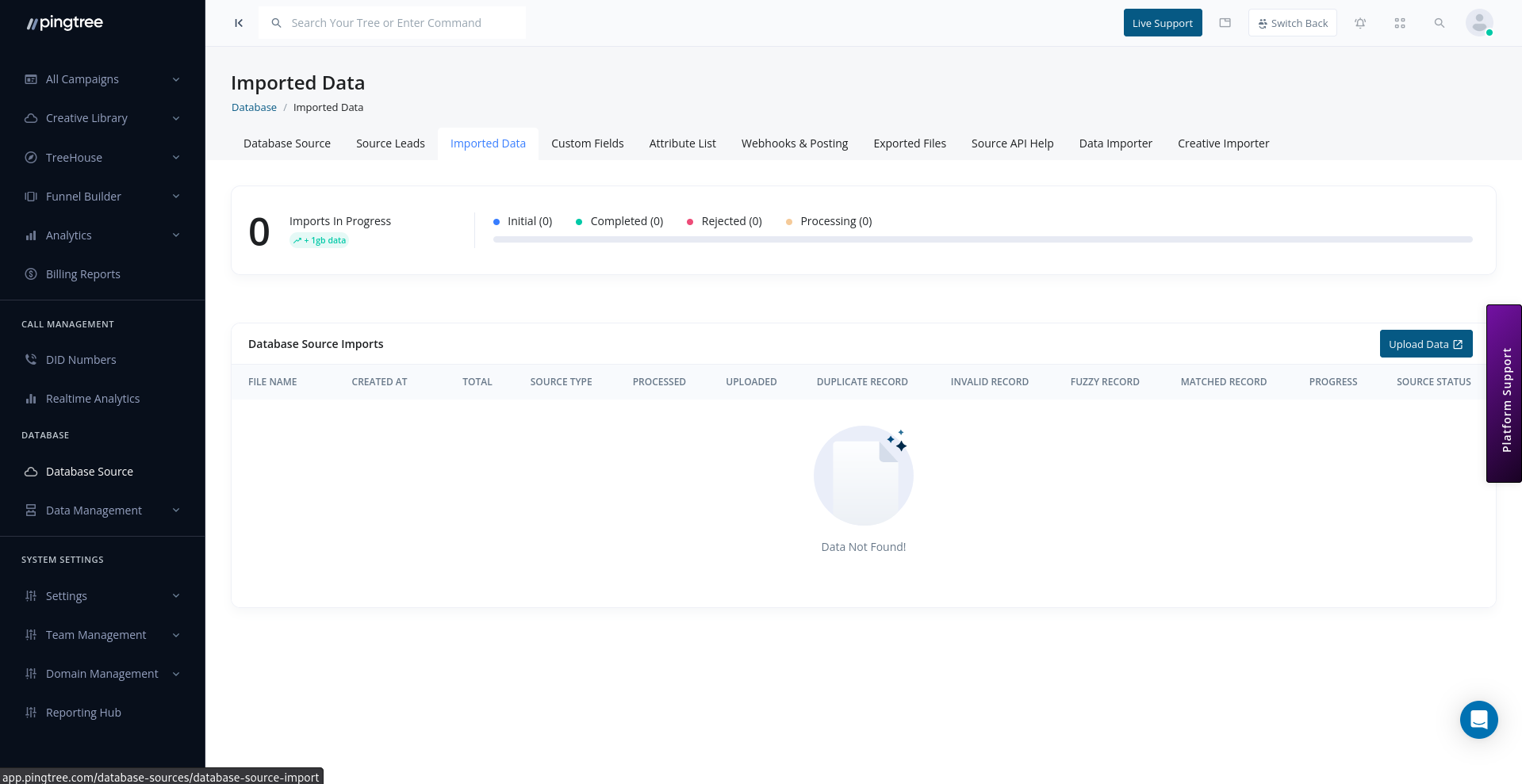
Import History Table#
Each row in the import history table represents one upload. The table includes:
| Column | Description |
|---|---|
| File Name | The name of the uploaded CSV file. |
| Uploaded By | The user who initiated the upload. |
| Uploaded At | Timestamp of when the file was submitted. |
| Status | Current processing state of the import. |
| Total Rows | The total number of lead rows in the file. |
| Matched | Leads that matched existing records in the source. |
| Unmatched | Leads that did not match any existing record (created as new). |
| Fuzzy Matches | Leads flagged as near-duplicates requiring manual review. |
| Failed | Rows that could not be processed due to data errors. |
Import Statuses#
| Status | Description |
|---|---|
| Pending | The file has been uploaded and is waiting to be processed. |
| Processing | The system is actively importing and matching leads from the file. |
| Completed | All rows have been processed successfully. |
| Completed with Errors | Processing finished, but some rows failed due to data issues. |
| Failed | The import could not be completed (e.g., invalid file format or critical error). |
Tip: If an import shows a Failed status, check that your CSV uses UTF-8 encoding and that required column headers are present and correctly named.
Fuzzy Matching#
During import, Pingtree's fuzzy matching engine scans each incoming lead and compares it against existing records in the source. When a lead is similar — but not an exact match — to an existing record, it is flagged as a Fuzzy Match rather than being automatically merged or rejected.
How Fuzzy Matching Works#
The system compares key identifiers such as name, email, and phone number. If the similarity score for a lead exceeds a threshold but is not a 100% exact match, the lead is held for manual review.
Examples of fuzzy matches:
johnsmith@gmail.comvsjohn.smith@gmail.comJon SmithvsJohn Smith- Phone numbers with and without country codes
Reviewing Fuzzy Matches#
To resolve fuzzy matches for an import file:
- Click the import file row to expand its details.
- Click the Review Fuzzy Matches button.
- For each fuzzy match, you will see:
- The incoming lead from the CSV on the left.
- The existing lead it was compared against on the right.
- A similarity score indicating how closely they match.
- Choose one of the following actions for each pair:
| Action | Description |
|---|---|
| Merge | Combine the incoming lead's data with the existing record. |
| Create New | Treat the incoming lead as a new, separate record. |
| Reject | Discard the incoming lead without storing it. |
- After reviewing all matches, click Confirm to apply your decisions.
Tip: Review fuzzy matches promptly after each import. Unresolved fuzzy matches remain in a pending state and are not counted as fully imported until resolved.
Lead Counts per Import File#
Each import file displays a breakdown of its lead outcomes:
| Count | Description |
|---|---|
| Matched | Leads from the CSV that exactly matched an existing record. |
| Unmatched | New leads that were created from the CSV. |
| Fuzzy Matched | Leads flagged for manual review (pending until resolved). |
| Failed | Rows with data errors that could not be processed. |
The sum of Matched + Unmatched + Fuzzy Matched + Failed equals the Total Rows in the file.
Re-Importing Failed Rows#
If some rows fail during an import:
- Open the import file detail view.
- Click Download Failed Rows to get a CSV of only the rows that errored.
- Fix the data issues in the file.
- Re-upload the corrected file using the Data Importer.
Tip: The failed rows CSV includes an additional
error_reasoncolumn that describes why each row was rejected, making it straightforward to identify and fix data quality issues.