
Campaign Management / Reports
Events Report
View and analyze event logs and aggregated event performance for leads sold across campaigns.
The Events Report in Pingtree (PT) helps campaign owners track, analyze, and optimize all lead-related event activities within a campaign. It provides insights into event performance both at the individual and aggregate levels.
Overview#
The Events Report offers two distinct views:
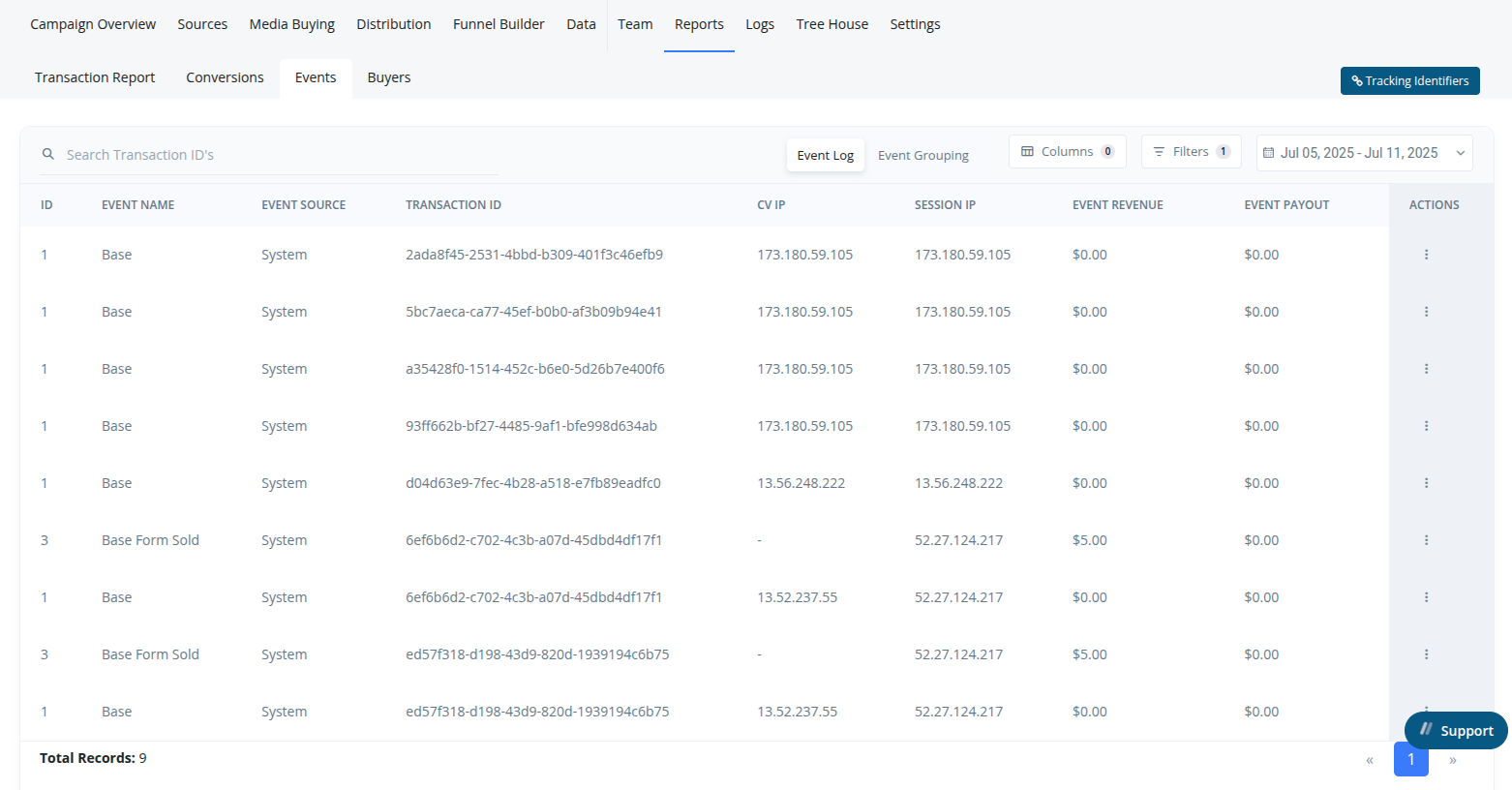
1. Event Log View#
Provides a detailed, transaction-level breakdown of every recorded event.
Key Data Points:#
- Event Name
- Transaction ID
- Event Revenue
- Event Payout
- Lead ID
- Timestamp
Filters Available:#
- Source – Filter by origin (e.g., Custom Source, Media Channel, or Marketing Partner)
- Advertiser – Select one or more advertisers
- Events – Filter specific event types (e.g.,
event_form_completed,event_call_connected) - Lead Type – Choose from
click,form, orall - Custom Filters – Narrow your report using dynamic conditions
- Date Range – Filter by specific timeframes
2. Event Grouping View#
This view aggregates events by key dimensions, making it easier to spot trends, compare channels, and assess campaign effectiveness.
Common Grouping Dimensions:#
- Source
- Event Type
- Media Type
- Device Type
- Advertiser
Filters Available:#
- Source
- Lead Type
- Date Range
Use Cases#
- Identify top-performing sources for specific event types
- Monitor event revenue trends over time
- Compare media performance across different campaigns
- Spot issues (e.g., high rejection or low engagement) early through event logs
Switching Between Views#
Use the toggle within the Events Report interface to switch between:
- Event Log View (detailed per-lead data)
- Event Grouping View (aggregated summaries)
Tip: Customize your columns and filters for each view to tailor insights to your reporting needs. This report is crucial for understanding downstream lead activity after sale or submission.