
Campaign Management / Reports
Buyers Report
View all leads sold or rejected by buyers in a campaign. Offers filtering, grouping, and customizable columns.
The Buyers Report in Pingtree (PT) provides campaign owners with a detailed view of all leads that were sold or rejected by buyers. This report enables teams to track buyer behavior, measure conversion outcomes, and refine lead distribution strategies.
Overview#
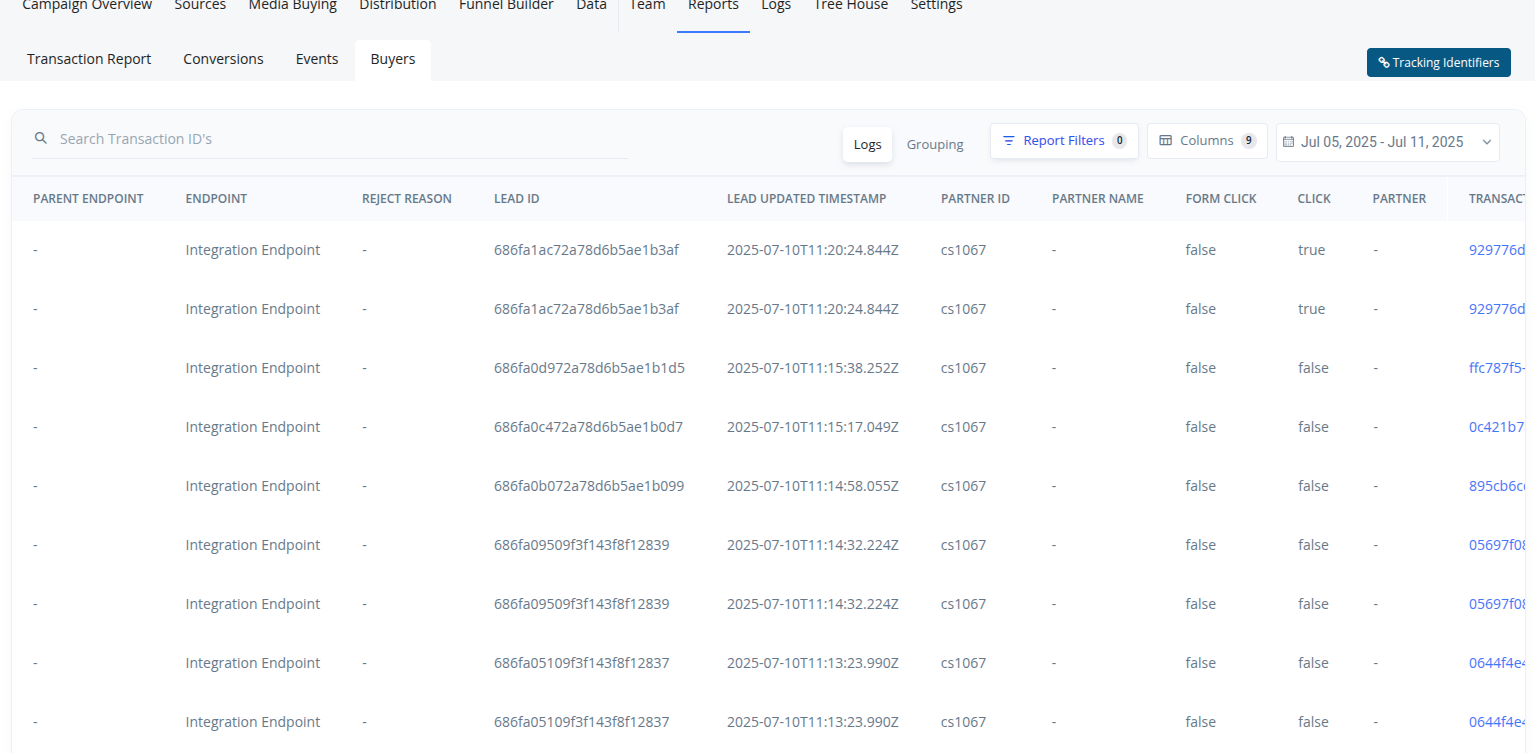
This report is accessible from the Campaign View → Reports → Buyers tab. It presents all buyer-related lead activity and supports:
- Individual or grouped views
- Date-based filtering
- Dynamic column visibility
- Buyer-specific reporting
Key Features#
Sold & Rejected Lead Tracking#
- Easily see which leads were successfully sold or rejected by buyers.
- If a lead is rejected, fields like endpoint and rejection reason are available.
View Modes#
- Individual View: Lists each lead transaction line by line.
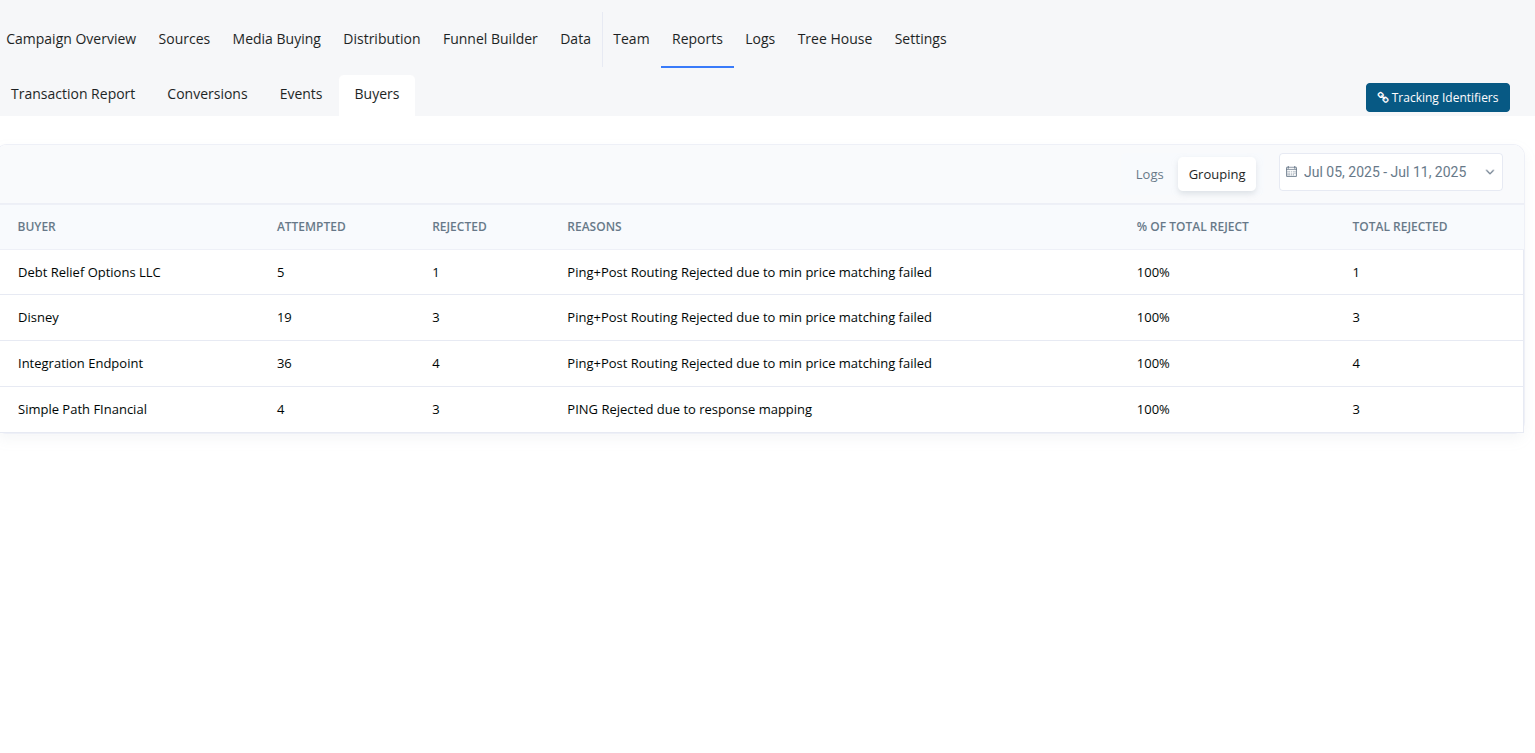
- Group View: Aggregates data by buyer or endpoint for higher-level summaries.
Toggle between these views using the Group Tab.
Date & Buyer Filters#
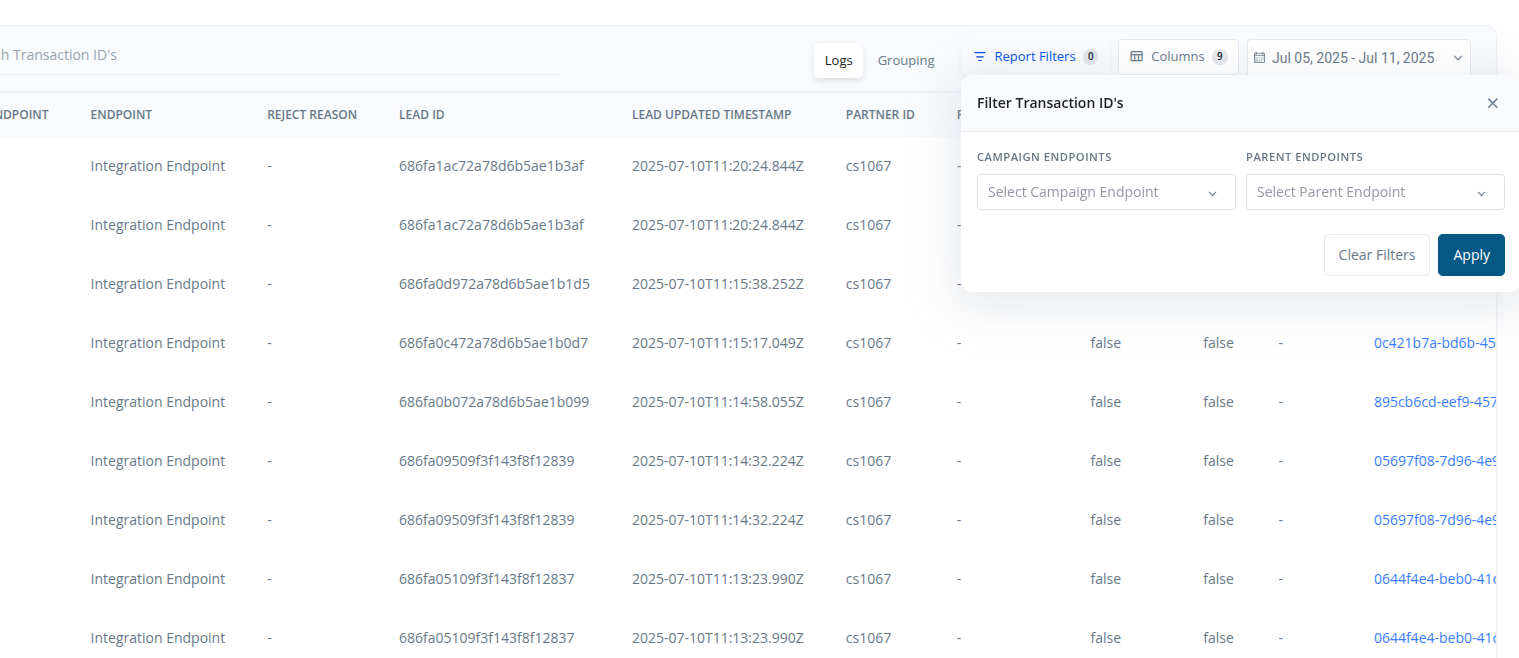
- Use the Date Picker to narrow results to a specific time window.
- Filter the report to focus on a specific buyer or a set of buyers.
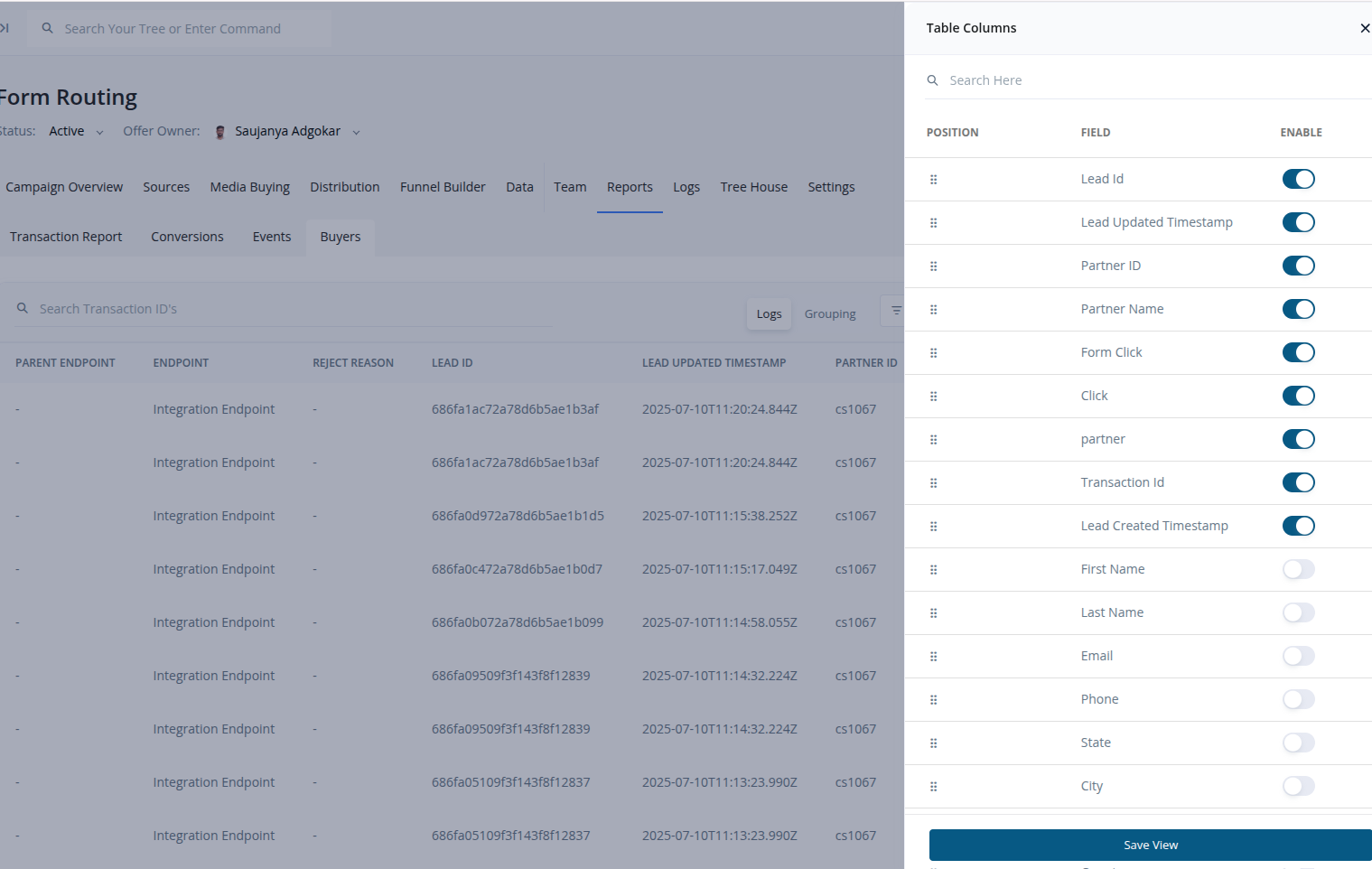
Column Customization#
- Decide which columns you want visible in your report.
- Hide or show data fields like:
endpointbuyer_namerejection_reasonstatuslead_id, etc.
How It Works#
- Navigate to:
Campaign > Reports > Buyers
- Configure your filters:
- Choose a date range
- Apply buyer filters
- Select columns to show or hide
- Switch views:
- Use Group Tab to view grouped summaries
- Analyze outcomes:
- Understand which leads are converting and which are being rejected — and why.
Note: This report is particularly useful for diagnosing delivery issues, managing buyer quality, and fine-tuning your lead distribution rules.